If the voices keep sinking under the music and the explosions keep sending you for the remote, there are two settings to change, and most TVs and streaming boxes have both. One lifts the dialogue above everything else. The other narrows the gap between the quietest and loudest moments. Turn on the first, replay a scene, and add the second only if the loud parts still make you jump.
The trouble is that, as with motion smoothing, no two manufacturers call them the same thing, several only work through the TV's own speakers, and one of them can quietly turn a surround signal into stereo. The table below has the names. The rest of this page covers where each one helps and where it doesn't.
Why the voices get buried
It starts in the mix. Netflix's sound specification for its own productions measures loudness only while someone is talking. Average dialogue is set at -27 LKFS, a broadcast loudness measure, and peaks are allowed up to -2 dB true peak. Everything above that dialogue line is headroom for music and effects, and in a quiet room with good speakers that range is the point.
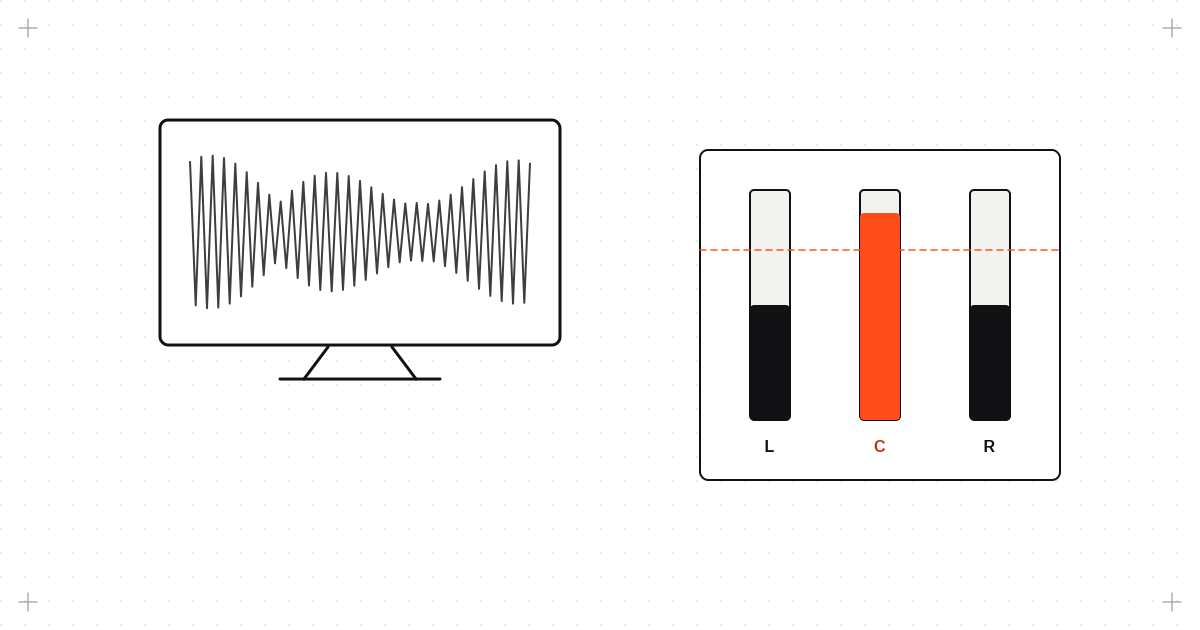
Then there's the channel count. In a 5.1 mix the dialogue sits mostly in the centre channel, and Dolby's own speaker setup guide says centre speakers are "primarily used to deliver dialog." A TV with two speakers has no centre, so the decoder folds that channel into left and right, which is where Dolby's test documentation shows it landing in a stereo downmix. The voices end up sharing two speakers with the score and the gunfire.
The TV's sound mode can make it worse. LG's help library warns that immersive modes such as Cinema or Sports can push voices back, which is the opposite of what the name suggests.
The two settings on each device
| Device | Dialogue setting | Loudness setting | Where it lives |
|---|---|---|---|
| Samsung | Amplify (a sound mode) | Auto Volume | Settings, All Settings, Sound, Sound Mode; Auto Volume is under Expert Settings |
| LG | Clear Voice Pro (Clear Voice on 2020 and older sets) | Auto Volume Control | All Settings, Sound, Select Mode; Auto Volume Control is under Advanced Settings |
| Sony | Voice Zoom, or Dialog enhancer with Dolby processing | Advanced auto volume | Settings, Display & Sound, Picture & Sound |
| Vizio | None listed in Vizio's current audio guide | Volume Leveling | Menu, All Settings, Audio |
| TCL on Google TV (2024 on) | Dialog Enhancer, or the Voice sound mode | Auto Volume Control | Settings, Display and Sounds, Audio |
| Hisense on Google TV | Dialog Clarity, or the Speech sound mode | TruVolume HD | Settings, Display & Sound, Sound |
| Roku TV (TCL, Hisense and others) | Set by the TV maker; Speech clarity only with a Roku audio device | Volume Leveling | Star button, Sound settings, Sound mode, Customize sound mode |
| Fire TV smart TVs | Dialog Clarity | TruVolume | Settings, Display & Sounds, Advanced Settings |
| Apple TV 4K | Enhance Dialogue | Reduce Loud Sounds | Settings, Video and Audio, or Audio Options during playback |
| Fire TV streaming devices | Dialogue Boost | Not documented | Settings, Accessibility, Dialogue Boost |
| Roku streaming players | Speech clarity only with a Roku audio device | Leveling or Night | Star button, Sound settings |
| Google TV Streamer | Dialogue enhancement | Volume leveler | All settings, Display & Sound, Audio options |
The two columns do different jobs. A dialogue setting works on the voice itself: LG describes Clear Voice as cutting background noise and emphasising speech frequencies. A loudness setting works on the whole soundtrack. Apple says Reduce Loud Sounds works by reducing the dynamic range so loud music and effects aren't as loud, and Roku's Night mode raises quiet sounds like dialogue while turning down explosions.
Be careful with anything called auto volume or leveling. Samsung, LG and Sony describe theirs as evening out the jumps between channels, programs and inputs, which is a different problem from a single film's range. On those sets the dialogue control will do more. Vizio's audio guide is the exception that promises a little of both: it says Volume Leveling may also make quieter dialogue and louder background sounds more consistent.
Samsung
- Open Settings, then All Settings.
- Select Sound, then Sound Mode.
- Choose Amplify, which Samsung says boosts mid and high tones and helps when voices are difficult to understand.
Active Voice Amplifier, on sets with Intelligent Mode, solves a different problem. It analyses noise in the room and adjusts the sound to match, so it helps over a dishwasher rather than over a film's own score. Some Intelligent Mode features work only when sound comes from the TV speakers.
LG
- Press Settings on the remote and choose All Settings.
- Select Sound, then Select Mode.
- Choose Clear Voice Pro. On 2025 sets running webOS 25 you can pick Clear Voice or Clear Voice Pro. On 2020 and older models the mode is called Clear Voice.
Sony
Voice Zoom lives under Settings, Display & Sound, Picture & Sound, but Sony's help guide for the BRAVIA 9, 8, 7 and 5 says it only appears when Post-processing is set to Standard. Switch to Dolby Audio processing and the control becomes Dialog enhancer instead.
Roku TVs and players
Roku's own menus have no dialogue control unless a Roku audio device is attached. Speech clarity appears only with a Roku Streambar, soundbar or Roku speakers, and on a Roku TV without one, Roku says the sound modes on offer vary by manufacturer. The volume mode is Roku's:
- Start playing something and press Star on the remote.
- Select Sound settings, then Sound mode, then Customize sound mode.
- Set Volume Leveling to Low, Medium or High.
Supported players and Streambars offer Leveling and Night instead. Roku's own page carries a warning worth reading: with a volume mode active, Dolby Digital, Dolby Digital Plus, DTS and Atmos may be converted to stereo, so if a receiver or soundbar is attached, set the mode back to Off.
Apple TV
Both controls are in the Audio Options button during playback, per film, or as defaults:
- Open Settings, then Video and Audio.
- Set Enhance Dialogue to Enhance, or Enhance More, which Apple warns can alter the original mix.
- Turn on Reduce Loud Sounds.
Apple notes that the options available depend on what's playing, what speakers you use and which Apple TV model you have.
Fire TV and Google TV
On Fire TV the setting is Dialogue Boost under Settings, Accessibility, and Amazon says availability varies by device. The Google TV Streamer has Dialogue enhancement and Volume leveler switches under Display & Sound, Audio options. Be aware that Google's sync troubleshooting page lists both as things to turn off when sound and picture drift apart. If lips stop matching after you switch them on, that's why, and fixing audio that is out of sync covers the rest.
If the sound goes through a soundbar
Once audio leaves the TV, many of the TV's own voice and volume settings stop applying. Samsung greys out many of its Expert Settings, and Hisense only allows sound mode changes when the TV speaker is the output. The bar has its own versions. Sonos has Speech Enhancement and Night Sound, both on the Now Playing screen. Samsung's 2022 and later bars have Voice Enhance on the Sound Control button, and Samsung's guide pairs it with the CH LEVEL button, which raises the centre channel by up to 6 dB. Sony's BRAVIA Theatre Bar 8 and 9 have an Audio DRC setting that compresses the range between the loudest and quietest parts.
A bar with a real centre speaker can only use it properly if it receives a surround signal. Roku's connection guide lists PCM over optical as two channels only, and standard ARC carries the same formats plus Dolby Digital Plus. A TV set to PCM sends the bar a stereo mix with the dialogue already folded into left and right, and there is no separate dialogue channel left for the centre speaker. Apple TV's Stereo Only option does the same thing at the box. Setting the TV's digital audio output to Auto, Bitstream or Pass-through, the same change that gets Dolby Atmos to a soundbar, hands the bar the real centre channel.
When settings aren't enough
Prime Video can fix it per title. Its Dialogue Boost sits in the Audio section of the subtitles menu on supported titles, with Medium and High levels, on the web, Amazon devices and phones.
Past that, the dependable answer is text. Subtitle size and background are a device setting rather than an app one, so a single pass through the accessibility menu makes subtitles readable everywhere.