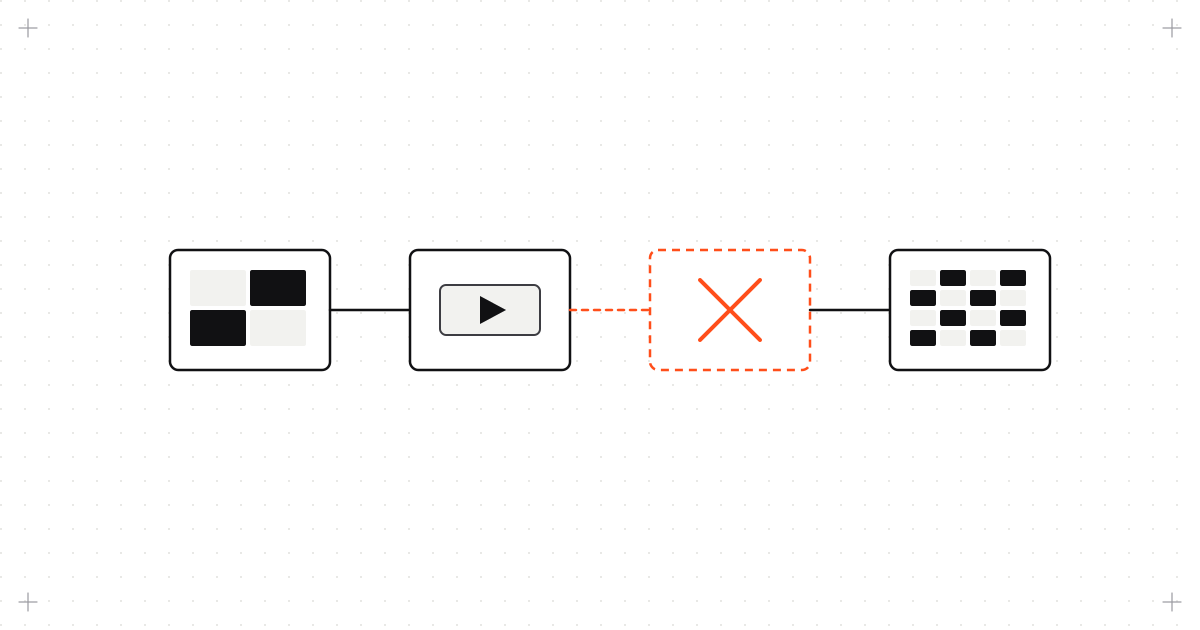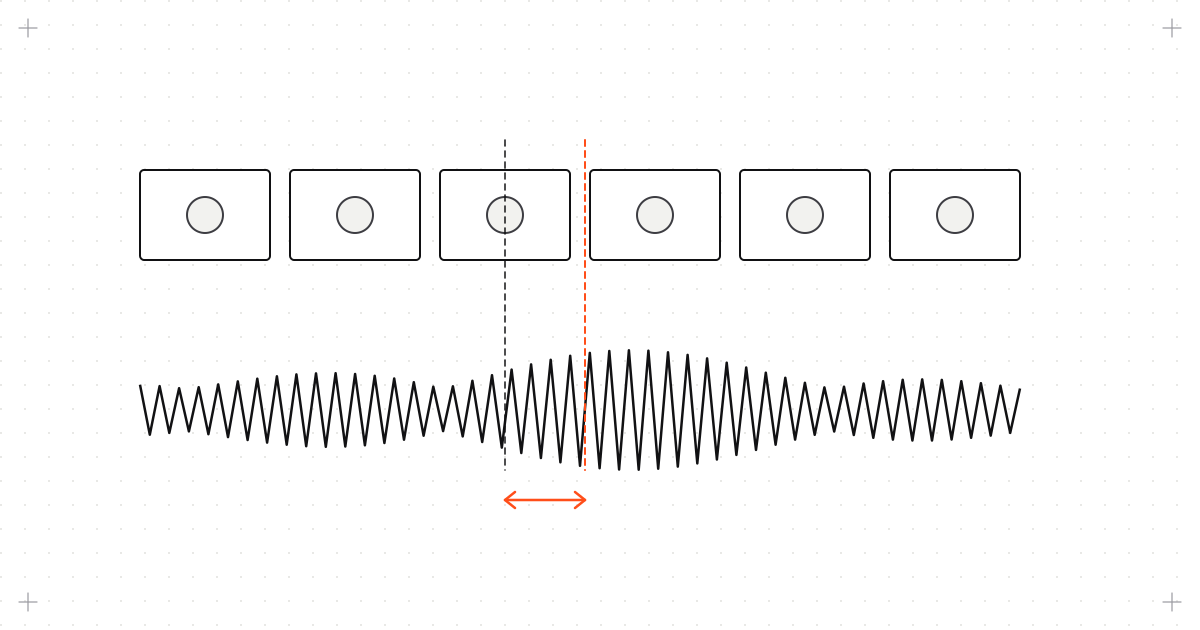
When voices land a beat after the lips move, or a beat before, first check whether it happens everywhere. If one film is off, the file is at fault and no setting will help. If everything is off, something in your setup is taking longer to handle the sound or the picture than its partner, and the fix is a delay control on one of those devices. Then answer a second question: is the sound early or late? That one matters most, because many sync sliders can only hold audio back. Sonos only offers its slider for sound that arrives early, and the same limit applies to any control that just adds delay.
Why sound and picture drift apart
Sound and picture are processed separately, and the two rarely finish at the same moment. Devices normally use timing information to cover the gap, but Roku's sync guide lists what throws it off: picture settings that add video processing, sound settings that convert one audio format into another, and 4K or HDR video, which carries far more data. Badly authored content and transmission errors can also carry the wrong timing in the first place.
An external soundbar or receiver adds processing of its own, and Sony's help guide says sound from an HDMI audio device "may be delayed due to the properties of the audio device." Bluetooth adds more. Samsung goes as far as saying no setting on its TVs will resolve Bluetooth or wireless speaker sync problems.
The connection matters as well. eARC has audio and video lip-sync built in, which Roku notes was only an optional feature in the original ARC specification. An older ARC TV and soundbar may not be telling each other anything about their delays.
Find the cause before you adjust anything
- Try another title and another app. If only one film is off, Roku says it was probably authored badly or damaged, and no setting will fix it. If one app is off across many titles, close it and try another, then report it to the service.
- Check other inputs. If only the cable box or console is out of sync, restart that device.
- Switch to the TV speakers. LG suggests comparing the TV speaker with the external one. If the TV speakers are in sync and the soundbar isn't, the soundbar, or the format it's being sent, is the problem.
- Decide which way it's off. Watch a close-up of someone talking and note whether you hear the word before or after the mouth moves.
If the sound is late
This is the harder case. A delay slider makes it worse, so the job is to take processing out of the audio path or add delay to the picture.
- Set the TV's digital audio output to PCM. Both Roku and Sonos recommend it. Sonos says it removes the delay but also turns off surround sound, so it trades away the setup in our Dolby Atmos guide.
- Turn off Game Mode. Roku's other suggestion for late sound. Game Mode removes picture processing, so the picture gets faster and the sound falls further behind.
- Turn off extra audio processing on the TV and on any streaming box. Sonos names this as a common cause.
- Use a control that can move both ways. Fire TV's AV Sync Tuning can, and Sony's A/V sync works by delaying the picture.
If the sound is early
This is the easy case, because most of the controls below add audio delay. If the picture is the slow one, Roku also suggests turning off advanced video processing such as motion smoothing and noise reduction, which takes time out of the picture path. We list what motion smoothing is called on each brand separately.
Where the sync control lives
| Device | Name of the setting | Where it lives | Worth knowing |
|---|---|---|---|
| Samsung TV | Digital Output Audio Delay | Settings, All Settings, Sound, Expert Settings | Only for speakers on HDMI eARC or optical |
| LG TV (2021 on) | Match Screen and Sound | All Settings, Sound, Advanced Settings | Older sets: AV Sync Adjustment under Additional Settings |
| Sony TV | A/V sync | Settings, Display & Sound, Audio output | Separate entries for HDMI audio systems and Bluetooth |
| Vizio TV | Lip Sync | Menu, All Settings, Audio | Vizio says the right value can differ by app or input |
| Hisense on Google TV | Lip Sync; Digital Audio Delay | Display & Sound, Sound, Advanced Settings; Display & Sound, Audio Output | Digital Audio Delay applies only to ARC or optical |
| Fire TV | AV Sync Tuning | Settings, Display & Sounds, Audio | Not on all Fire TV smart TVs |
| Apple TV 4K | Wireless Audio Sync | Settings, Video and Audio, Calibration | Needs an iPhone; aimed at wired plus wireless speakers |
| Roku | Adjust Audio Delay | Roku mobile app, your device, Remote, Settings | For Streambars and Roku speakers |
| Google TV Streamer | None | Adjust the TV, receiver or soundbar instead | Google lists two audio switches to turn off |
| Sonos soundbars | TV Dialog Sync | Sonos app, Settings, your product, Home Theater | Can only delay audio |
| Samsung soundbars | Audio Sync | Sound Control or Audio Sync button on the bar's remote | Not with Bluetooth or USB sources |
| Sony BRAVIA Theatre Bar 8 and 9 | A/V Sync | Bar's app, Settings, Sound Settings | Adjusts the delay between picture and sound |
Samsung and LG
On a Samsung TV, open Settings, All Settings, Sound, Expert Settings, then Digital Output Audio Delay. Samsung's instructions only cover the early case: if the audio runs ahead of the picture, move the slider right. Samsung's Canadian guide lists it for HDMI eARC and optical connections.
LG renamed its control on 2021 and later sets:
- Open All Settings, then Sound, then Advanced Settings.
- Select Match Screen and Sound.
- Try Bypass first, which sends sound out without delay.
- If that doesn't fix it, turn Bypass off and adjust TV Speaker Delay. LG says the closer the value is to 60, the later the voices arrive.
LG says the setting applies to the TV speaker and to Sound Share devices on the HDMI eARC/ARC port.
Fire TV
- Open Settings, then Display & Sounds.
- Select Audio, then AV Sync Tuning.
- Watch the bouncing ball. In sync, each bounce lands with a flash and a tone. If the tone comes before the flash, move right. If it comes after, move left.
Amazon's guide points Alexa Home Theater setups to a separate Lip Sync Tuning control.
Apple TV
Wireless Audio Sync is narrower than it sounds. Apple describes it as a fix for an echo between speakers wired to the TV or receiver and wireless speakers playing at the same time. Apple TV plays tones through the wired speakers, measures the latency with your iPhone and matches the wireless ones to it.
Google TV Streamer
There is no sync slider. Google's troubleshooting page says to adjust the delay on the TV, receiver or soundbar, set Output format to Automatic, and turn off Dialogue enhancement and Volume leveler under Display & Sound, Audio options. Those two switches are the same ones we suggest for dialogue that's too quiet, so if sync went wrong after you turned them on, that's the first thing to undo.
Sonos
- In the Sonos app, open Settings.
- Select your home theater product.
- Under Home Theater, select TV Dialog Sync and move the slider right until the voices match.
Game Mode moves the target
Samsung's gaming guide puts it plainly: Game Mode removes picture processing from the TV, and on some models it switches on by itself when a console is the selected source. A sync offset you set for films can be wrong the moment that happens. Sony is explicit about the knock-on effect: on its current sets, A/V sync is fixed at Off when Content type is set to Game or PC. Sony also warns that with a Bluetooth device connected, games can feel slower, because its A/V sync adds delay to the picture. For anything that depends on reaction time, Sony recommends TV speakers or a wired soundbar instead.
Bluetooth headphones
Sony's A/V sync has its own Bluetooth entry, Fire TV smart TVs list a Bluetooth Audio Sync setting, and Roku's Headphone Mode in the mobile app has an Adjust audio delay option with an Advanced adjustment slider. Samsung's soundbar sync, by contrast, doesn't work at all when Bluetooth or USB is the source.
If the picture and sound match but the text lags behind both, the subtitle file is the problem, and timing is usually not fixable.