When a 4K title plays in HD, something between the service and your screen has capped it, and it's rarely anything exotic. Check your plan first, then the device or browser, then the HDMI connections, then your internet speed, and only then the title itself and the TV's own settings. The first two take a minute to rule out.
Start with the label. Netflix's details page shows the quality a title will play at on the device you're using, and other services badge their 4K titles the same way. If a title you know exists in 4K shows HD, work down this list.
1. The plan
Resolution is one of the first things a cheaper plan takes away, and the cap applies whatever your TV can do. In the US:
- Netflix: Standard with ads and Standard both stop at 1080p. 4K and HDR come only with Premium.
- HBO Max: Basic with Ads and Standard are Full HD 1080p. 4K is Premium.
- Prime Video: titles included with Prime are limited to 1080p unless you add Prime Video Ultra, the add-on that replaced Amazon's ad-free option. Purchases and rentals aren't capped, and HDR10, HDR10+ and Dolby Vision stay included with Prime.
- Paramount+: 4K, Dolby Vision and HDR10 are listed for Premium, not Essential.
- Peacock: Premium and Premium Plus both get 4K on select titles, and it can't be switched off.
- Disney+: not a plan problem in the US. Both Disney+ with ads and Premium list up to 4K UHD and HDR, and both Hulu plans list up to 4K UHD.
We cover what else a cheaper tier takes away in what an ad tier actually costs you.
One Netflix setting behaves like a plan cap. In Playback Settings on the web, Data usage per screen has to be High or Auto for 4K, and it's set separately for each profile.
2. The device, app or browser
Computers are the usual culprit. On Windows, Netflix plays 4K in Edge, Chrome or the Netflix app, and HDR only in Edge and the app. Firefox and Opera stop at 1080p. Older advice that Chrome is capped at 1080p no longer matches Netflix's own Windows page. 4K also needs Windows 11, a 4K 60Hz display on an HDCP 2.2 connection, graphics from a GeForce 1050 or Radeon RX 400 series upward or a 7th-generation Intel Core or AMD Ryzen processor, and the HEVC codec. Some Windows 11 machines lack HEVC, and Netflix says you may need to buy the HEVC video extension from the Microsoft Store.
On a Mac, only Safari reaches 4K Netflix. Chrome, Firefox and Opera stop at 1080p and Edge at 720p. The Mac needs Apple silicon or a T2 chip and macOS 11 or later, and an external monitor must be 4K at 60Hz on an HDCP 2.2 cable.
Other services are stricter. Prime Video plays up to HD in any browser and in its Windows and Mac apps. The Apple TV app on the web reaches 4K HDR only in Safari on a Mac. Chrome, Firefox and Edge get 1080p.
On a TV, the streaming box has its own output setting, and each will tell you when the HDMI connection is the limit:
- Roku: go to Settings, Display type, and choose Automatic.
- Fire TV: go to Settings, Display & Sounds, Display, Video Resolution, and choose Auto. A notification appears if HDCP 2.2 isn't detected.
- Apple TV 4K: go to Settings, Video and Audio, and select Check HDMI Connection, which runs a two-minute cable test.
3. The HDMI chain
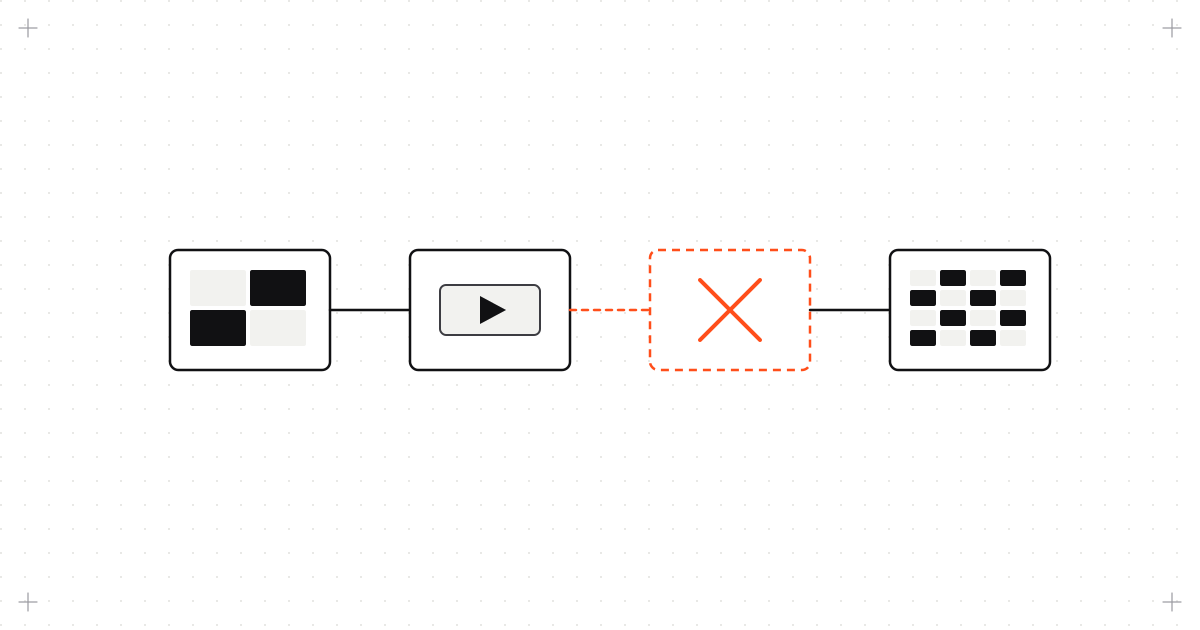
Every device between the box and the screen has to support HDCP 2.2, the copy protection 4K streams require, and Roku is blunt about it. If even one device lacks HDMI 2.0 and HDCP 2.2, the title plays at 720p or 1080p. Some older 4K TVs don't support HDCP 2.2 at all, and others support it on a single input. Three places it catches people:
- The port. Netflix says the HDCP 2.2 port is usually HDMI 1, and Amazon says ports labeled HDCP 2.2, UHD or 4K typically support it. Apple adds that some TVs only take HDR on HDMI 2 or HDMI 3. The label beside the socket, or the manual, settles it.
- The receiver or soundbar. It has to pass 4K and HDCP 2.2 through, and Roku warns that some receivers limit their front-panel inputs to 30 frames per second. The quick test is to plug the box straight into the TV. If 4K appears, leave it there and send sound to the receiver over ARC or eARC, which still carries streaming Atmos, as we explain in the Dolby Atmos guide.
- The cable. Netflix requires Premium High Speed or Ultra High Speed HDMI cables for its Premium plan. HDMI's licensing body certifies Premium High Speed cables for 18Gbps and 4K at 60Hz with HDR, while a plain High Speed cable is only tested to 10.2Gbps and 4K at 30Hz. Certified Premium and Ultra High Speed cables carry a label with a QR code you can scan.
4. The connection
Services drop resolution when the connection can't sustain it, and their thresholds differ:
- Netflix: 15 Mbps or higher for 4K
- Apple TV app: a minimum of 25 Mbps for 4K
- HBO Max: 25 Mbps or higher, with 50 or more recommended
- Prime Video: a consistent 25 Mbps for Dolby Vision
Netflix also says it sometimes starts in a lower resolution and steps up after a short time, so give a title a moment before judging it. Test from the device that's actually streaming rather than your phone. Netflix's TV app has a test built in:
- On the Netflix home screen, press Back on the remote to open the menu.
- Select Get Help, under your profile icon if the menu runs along the top.
- Select Check your Network.
In a browser, fast.com runs the same kind of test.
5. The title, or a setting on the TV
Not every title is in 4K. Netflix lets you search "4K" for a list, and suggests Black Island, 1922, After Maria and Birders as test titles that show the 4K label when your setup can play it. HBO Max shows 4K UHD, HDR10 or Dolby Vision on the details screen, Peacock puts a 4K UHD badge in a title's Information section, and Prime Video groups them in rows labeled 4K Ultra HD or 4K HDR.
If the box reports 4K and the picture still isn't, look at the TV's HDMI input setting. Roku explains the trap: to stay compatible with early Ultra HD Blu-ray players, many 4K TVs leave their inputs in an HDMI 1.4 mode that limits 4K HDR to 30 frames per second, and some apps, Netflix among them, won't play 4K HDR unless 60 is supported. Samsung's own PC setup guide makes the same point: with Input Signal Plus off, its UHD sets' native resolution is 3840 x 2160 at 30Hz, against 60Hz with it on.
| Brand | Setting to turn on | Where it lives |
|---|---|---|
| Samsung | Input Signal Plus (HDMI UHD Color on some models) | Settings, All Settings, Connection, External Device Manager. Some models use General instead of Connection |
| LG | HDMI Deep Color (HDMI Ultra HD Deep Color on 2020 and older sets) | 2026 sets: All Settings, System, External Devices, HDMI Settings. 2021 to 2025: All Settings, General, External Devices, HDMI Settings |
| Sony | HDMI signal format, set to Enhanced format | Settings, then External inputs in the TV category |
| Hisense on Google TV | HDMI Format, set to Enhanced Format or Enhanced Pro | Settings, Channels & Inputs, External Inputs |
| Roku TV models | HDMI mode, set to Auto or Standard | Settings, Inputs, then the HDMI input |
| TCL on Google TV | No separate switch documented | TCL says to use a port that supports HDCP 2.2 |
| Vizio | HDMI Mode | Picture, Input Picture Settings, per its 2022 M-Series manual |
The setting is per input, so change it for the port the box is plugged into. On LG you can only change the input you're watching at the time, so switch to it first. If the picture blanks or the colors go wrong afterwards, the device on that port probably can't handle the enhanced mode, so set that input back.
Once 4K is working, whether Dolby Vision or HDR10+ arrives on top is a separate chain of support, which we untangle in the HDR formats guide.